AI doctor headshots FAQ
Answers about source photos, clinical clothing, studio styling, and the free and paid options.
Can I create AI doctor headshots from a selfie?
Yes. Start with a recent photo that clearly shows your face without heavy filters or strong shadows. You do not need a studio photograph or clinical clothing in the reference. The generator handles the outfit, lighting, and background. Add another clear reference if glasses, hair, or the angle conceal recognizable details.
Do AI doctor headshots have to include a white coat?
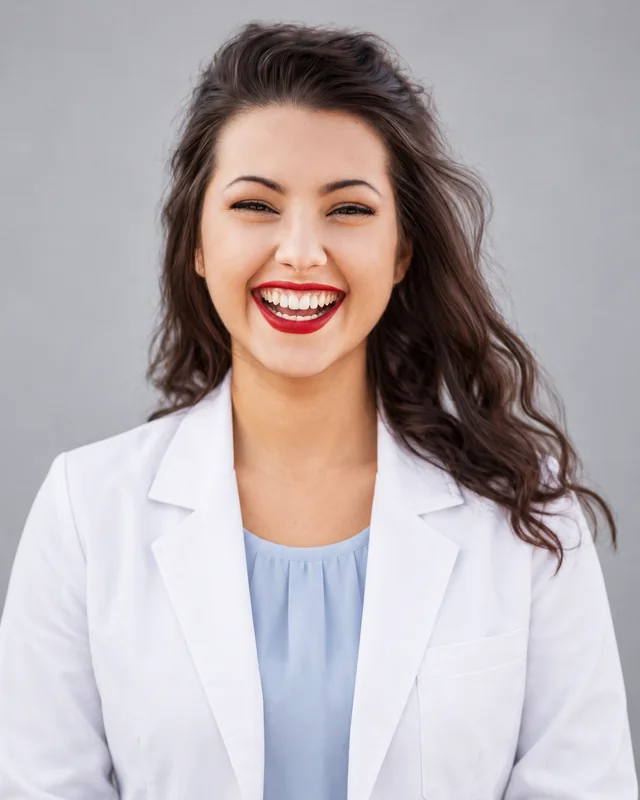
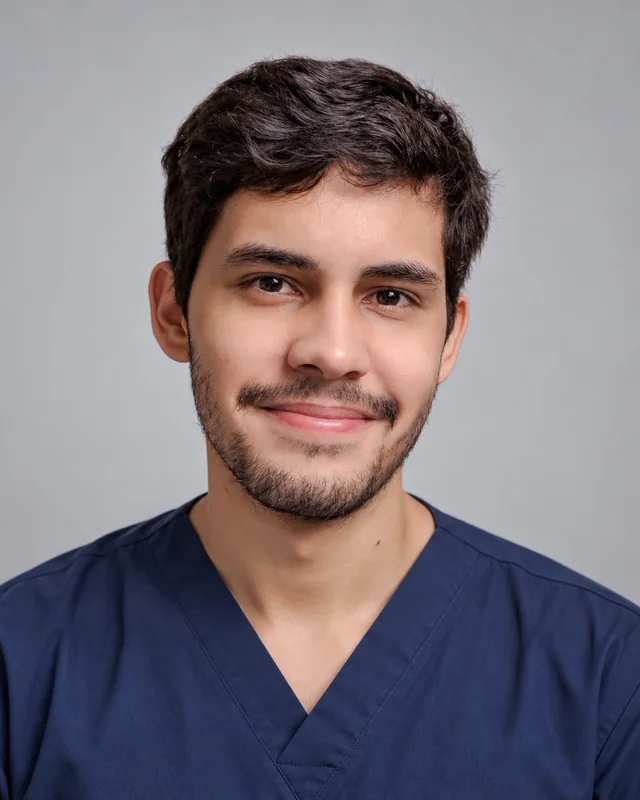
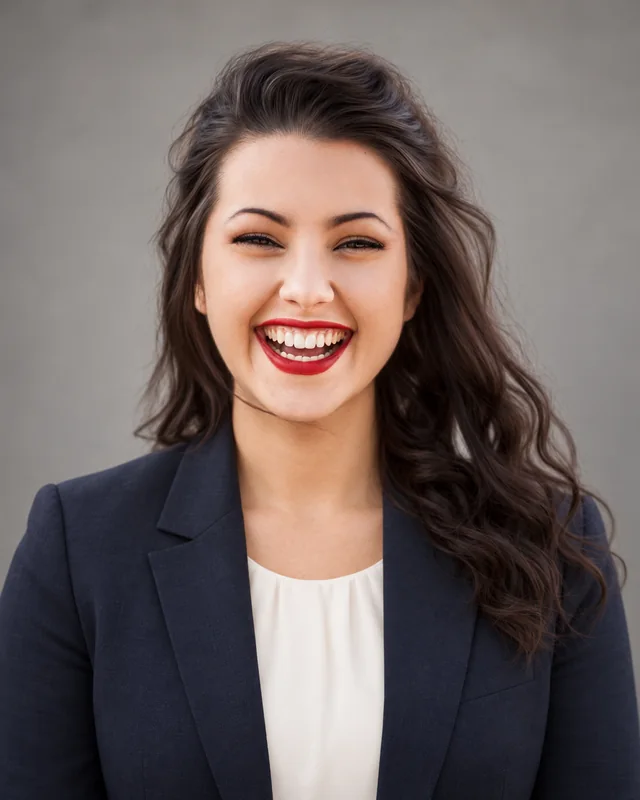
No. Choose the clothing that fits your actual role and the page’s photography brief. You can describe a plain white coat, scrubs, or professional clothing in the preference field. Include the outfit’s color, a simple backdrop, and soft facial light so the portrait follows your preferred direction.
Can I use AI doctor headshots on my hospital’s website?
Ask the person responsible for that website whether generated portraits are accepted, then follow the supplied image requirements. The image checks cover likeness, naturalness, and professional fit; medical credentials and publishing approval remain with your institution. Review the studio-style portrait and submit the final file through its usual process, with names, titles, and logos added in its own layout.
Should I add a stethoscope or a clinic background?
Neither is necessary for a clear professional portrait. A plain backdrop keeps the emphasis on your face, especially in a small provider card. If you request equipment, inspect its shape and placement closely. A generated room is a visual setting, not a photograph of your practice; use an actual practice photograph when you need to show the premises.
Can I try AI doctor headshots for free?
You can generate one watermarked preview without an account to try the portrait styling. A watermark-free download requires a paid upgrade. The complete Pro and Ultimate workflows include a recommendation and two alternatives per planned scene, plus edits while the plan is active. The free preview does not include that selection and editing workflow.
Can I change the clothing or background after generation?
With an active Pro or Ultimate package, select a portrait and describe the outfit, background, or lighting change you want. Edits do not repeat the complete generation review, so compare facial details with your original reference and check the new styling in your profile layout. Earlier versions remain available during the storage period. Use a recent reference for a new portrait if your appearance has changed substantially, then replace the published photo after choosing your final version.